


Mafia Wars Auto Player

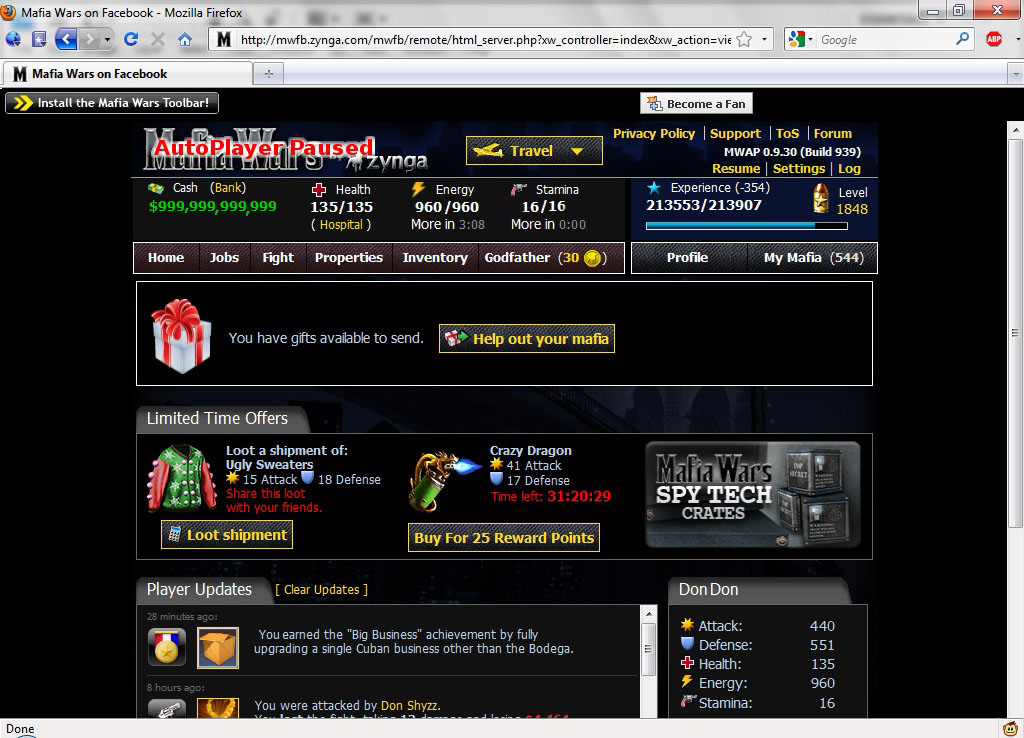
Mafia Wars is a game created by Zynga which is a popular game among facebook users. I just wanted to share a simple tip that can help you make your Mafia get stronger while you are AFK.
Mafia Wars Auto Player Settings:
- General - Refresh every 30-60 sec, auto pause, auto heal, auto collect lotto
- Display - Logging, Hide Facebook ads
- Social - Ask for job help,Automatically declare, Publish reward
- Skills - Auto Stat
- Energy - use energy to master jobs or do random jobs
- Stamina - Fight random or specific opponents, collect bounties
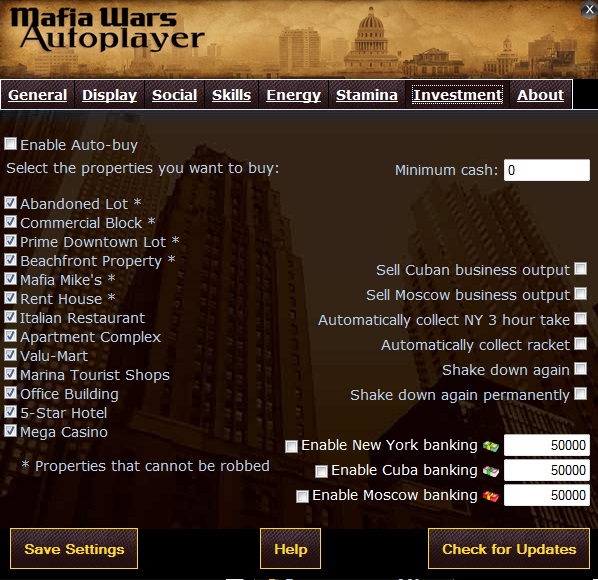
- Investment - Auto buy properties, auto banking
Steps:
- Download the extension for firefox called Greasemonkey and restart your firefox.
- Download and Install the Mafia Wars Auto Player (MWAP).
- Login to facebook and play Mafia Wars.
- Adjust and save MFAWP Settings then click Resume.
Disable the windows key without changing the registry
Here is a simple application that will disable the windows key the safe way and doesn't need any installation. Just run the program then close it from the system tray to terminate it. This program is done and compiled with the use of AHK. Download WinKeyDisabler.
Farmville Tree and Animal Harvester

Just wanted to share a little application to make harvesting trees or animals in Farmville a lot simpler any easier. After downloading the program Run the harvester then click the Middle Mouse Button to the tree or animal that you wanted to harvest. This program is done and compiled with the use of AHK.
Download FarmVille Harvester here. Enjoy farming!
Disable the Windows Key
This is a problem for some gamers that are annoyed every time they accidentally pressed the windows key while playing. This can also be used by Administrators who want to lock computers in secure environments (for example, demonstration workstations and kiosks) may need to disable the Windows keyboard commands found on the Microsoft Natural Keyboard and compatible keyboards. I'll show you two methods.
FIRST:
This is from microsoft's official site.
The following script used in conjunction with the Regini.exe utility from the resource kit disables the left and right Windows logo keys on the Microsoft Natural Keyboard and other compatible keyboards.
To disable all Windows keyboard shortcut keys, save the following text in a REGINI script called Disable_wins.ini in C:\. Run the script from the Windows NT command prompt(Type cmd in the run menu). For example, from the C:\> prompt, type regini disable_wins.ini. Restart the computer to make the changes take effect.
FIRST:
- Copy the following (everything in the box) into notepad.
- save as DisableWinKey.reg or with any file name.
Windows Registry Editor Version 5.00
[HKEY_LOCAL_MACHINE\SYSTEM\CurrentControlSet\Control\Keyboard Layout]
"Scancode Map"=hex:00,00,00,00,00,00,00,00,03,00,00,00,00,00,5b,e0,00,00,5c,e0,\
00,00,00,00
This is from microsoft's official site.
The following script used in conjunction with the Regini.exe utility from the resource kit disables the left and right Windows logo keys on the Microsoft Natural Keyboard and other compatible keyboards.
To disable all Windows keyboard shortcut keys, save the following text in a REGINI script called Disable_wins.ini in C:\. Run the script from the Windows NT command prompt(Type cmd in the run menu). For example, from the C:\> prompt, type regini disable_wins.ini. Restart the computer to make the changes take effect.
[REGINI SCRIPT STARTS HERE:]
;
; This mapping is used to turn both Windows keys off
;
\Registry\Machine\SYSTEM\CurrentControlSet\Control\Keyboard Layout
Scancode Map = REG_BINARY 24 \
0x00000000 0x00000000 3 \
0xE05B0000 0xE05C0000 \
0x0
; Here is an explanation of all the values:
;
; 24 Size of the scancode map including header, in bytes
; 0x00000000 Header : Version
; 0x00000000 : Flags
; 3 : Number of entries (includes null terminator)
; 0xE05B0000 left Windows -> nul (0xE0 0x5b -> 0x00)
; 0xE05C0000 right Windows -> nul (0xE0 0x5c -> 0x00)
; 0x00000000 null terminator
[REGINI SCRIPT ENDS HERE]
Disable The Send Error Report, to Microsoft
This will disable the feature in WinXP which tries to send a report to microsoft every time a program crashes.
STEPS:
STEPS:
- Open Control Panel
- Click on Preformance and Maintenance.
- Click on System.
- Then click on the Advanced tab
- Click on the error reporting button on the bottom of the windows.
- Select Disable error reporting.
- Click OK
Create One-Click Shutdown and Reboot Shortcuts
Create a shortcut on your desktop by right-clicking on the desktop, choosing New, and then choosing Shortcut. The Create Shortcut Wizard appears. In the box asking for the location of the shortcut, type shutdown.
You can add any combination of several switches to do extra duty, like this:
shutdown -r -t 01 -c "Rebooting your PC"
Double-clicking on that shortcut will reboot your PC after a one-second delay and display the message "Rebooting your PC." The shutdown command includes a variety of switches you can use to customize it.
Here are the parameters:
You can add any combination of several switches to do extra duty, like this:
shutdown -r -t 01 -c "Rebooting your PC"
Double-clicking on that shortcut will reboot your PC after a one-second delay and display the message "Rebooting your PC." The shutdown command includes a variety of switches you can use to customize it.
Here are the parameters:
- -s = Shuts down the PC.
- -l = Logs off the current user.
- -t nn =Indicates the duration of delay, in seconds, before performing the action.
- -c "messagetext" = Displays a message in the System Shutdown window. A maximum of 127 characters can be used. The message must be enclosed in quotation marks.
- -f = Forces any running applications to shut down.
- -r = Reboots the PC.
Change The Default Location For Installing Apps
As the size of hardrives increase, more people are using partitions to seperate and store groups of files.
XP uses the C:\Program Files directory as the default base directory into which new programs are installed. However, you can change the default installation drive and/ or directory by using a Registry hack.
Run the Registry Editor (regedit)and go to
XP uses the C:\Program Files directory as the default base directory into which new programs are installed. However, you can change the default installation drive and/ or directory by using a Registry hack.
Run the Registry Editor (regedit)and go to
HKEY_LOCAL_MACHINE\SOFTWARE\Microsoft\Windows\CurrentVersionLook for the value named ProgramFilesDir. by default,this value will be C:\Program Files. Edit the value to any valid drive or folder and XP will use that new location as the default installation directory for new programs.
Speedup boot time in XP
- Open notepad.exe, type "del c:\windows\prefetch\ntosboot-*.* /q" (without the quotes) & save as "ntosboot.bat" in c:\
- From the Start menu, select "Run..." & type "gpedit.msc".
- Double click "Windows Settings" under "Computer Configuration" and double click again on "Shutdown" in the right window.
- In the new window, click "add", "Browse", locate your "ntosboot.bat" file & click "Open".
- Click "OK", "Apply" & "OK" once again to exit.
- From the Start menu, select "Run..." & type "devmgmt.msc".
- Double click on "IDE ATA/ATAPI controllers"
- Right click on "Primary IDE Channel" and select "Properties".
- Select the "Advanced Settings" tab then on the device or 1 that doesn't have 'device type' greyed out select 'none' instead of 'autodetect' & click "OK".
- Right click on "Secondary IDE channel", select "Properties" and repeat step 9.
- Reboot your computer.
Auto End Tasks to Enable a Proper Shutdown in Windows XP
This reg file automatically ends tasks and timeouts that prevent programs from shutting down and clears the Paging File on Exit.
- Copy the following (everything in the box) into notepad.
- Save the file as shutdown.reg
- Double click the file to import into your registry.
Windows Registry Editor Version 5.00
[HKEY_LOCAL_MACHINE\SYSTEM\CurrentControlSet\Contro l\Session Manager\Memory Management]
"ClearPageFileAtShutdown"=dword:00000001
[HKEY_USERS\.DEFAULT\Control Panel\Desktop]
"AutoEndTasks"="1"
[HKEY_LOCAL_MACHINE\SYSTEM\CurrentControlSet\Contro l]
"WaitToKillServiceTimeout"="1000"
Speedup your internet with TCP Optimizer
Download TCP Optimizer
OS: Windows 9x/ME/2K/2k3/XP
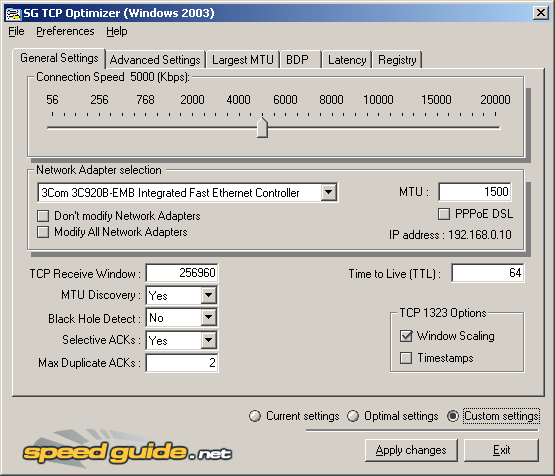
The SG TCP Optimizer is an "Internet Accelerator" which helps to dramatically boost your Internet speed. It optimizes Internet-related settings on your end of the connection (your PC), allowing for faster throughput.
The program works with any Internet connection, from dialup to leased lines. It is a completely free program that supports all current Windows versions, and it can improve Internet speed as much as 200% at no additional cost to you. It is completely legal, and often recommended by ISPs as a tool to troubleshoot and optimize internet connections.
The SG TCP Optimizer works best for optimizing broadband Internet connections, however it will work for dial-up and LANs to a degree. Note that it is a program that optimizes your end of the connection, and you will still be dependent on the feed that your ISP provides.
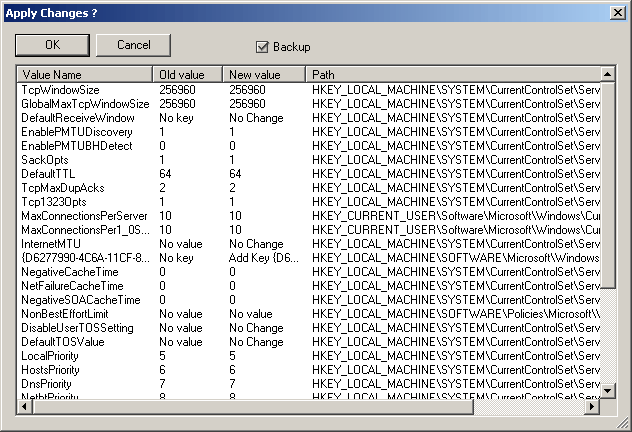
Screenshots:


OS: Windows 9x/ME/2K/2k3/XP
The SG TCP Optimizer is an "Internet Accelerator" which helps to dramatically boost your Internet speed. It optimizes Internet-related settings on your end of the connection (your PC), allowing for faster throughput.
The program works with any Internet connection, from dialup to leased lines. It is a completely free program that supports all current Windows versions, and it can improve Internet speed as much as 200% at no additional cost to you. It is completely legal, and often recommended by ISPs as a tool to troubleshoot and optimize internet connections.
The SG TCP Optimizer works best for optimizing broadband Internet connections, however it will work for dial-up and LANs to a degree. Note that it is a program that optimizes your end of the connection, and you will still be dependent on the feed that your ISP provides.
Screenshots:
Tweak your XP with TweakUI
OS:XP
Download TweakUI
One of the best tools for fine-tuning Windows XP is the free TweakUI PowerToy utility from Microsoft. TweakUI digs deep into Windows' settings and can customize its behavior dozens of ways, from how many icons appear on the Alt-Tab dialog to Explorer context menu choices to what your program shortcuts look like. This PowerToy gives you access to system settings that are not exposed in the Windows XP default user interface, including mouse settings, Explorer settings, taskbar settings, and more.

Download TweakUI
One of the best tools for fine-tuning Windows XP is the free TweakUI PowerToy utility from Microsoft. TweakUI digs deep into Windows' settings and can customize its behavior dozens of ways, from how many icons appear on the Alt-Tab dialog to Explorer context menu choices to what your program shortcuts look like. This PowerToy gives you access to system settings that are not exposed in the Windows XP default user interface, including mouse settings, Explorer settings, taskbar settings, and more.
Tweak UI Settings:
- General – sound, shadow, animation, menu settings
- Focus – prevent application from stealing focus.
- Alt+Tab – settings to control size of window when you press Alt+Tab.
- Mouse – menu speed, and mouse sensitivity settings
- Hover – control settings for mouse hover sensitivity.
- Wheel – enable/disable scrolling using mouse wheel, and lines amount per scroll setting.
- X-Mouse – enable/disable window focus type, when mouse over automatic focus window setting.
- Explorer – showing of links and menu settings
- Shortcut – shortcut icon overlay type setting.
- Colors – compressed files, hot-tracking, encrypted files settings.
- Thumbnails – image quality, thumbnail size settings.
- Command Keys – shortcut keys for explorer, documents, internet explorer settings.
- Customizations – folder to remember setting.
- Slide Show – picture delay and interval setting.
- Common Dialogs – auto-finish settings for edit boxes
- Places Bar – default, hide, or custom place bar settings.
- Taskbar and Start Menu – balloon tooltip settings
- Grouping – settings to control grouping of applications on taskbar.
- Start Menu – control visual of frequently used programs on start menu.
- Desktop – show which icons on desktop
- First Icon – choosing the first icon between ‘My Documents’ and ‘My Computer’. (Default is ‘My Documents’)
- My Computer – show which icons on my computer folder
- Drives – set usable drive letters.
- Special Folders – assigning of default location folders for each special task. (CD burning, shared documents, etc)
- AutoPlay – customization of autoplay for external harddisk.
- Drives – set usable drive letters.
- Types – enable/disable autoplay on which drive types. (removable drives, cd and dvd drives)
- Handlers – create, edit, delete handlers after autoplay.
- Drive Letters – settings on how drive letters should appear in ‘My Computer’.
- Control Panel – settings to hide control panel icon extensions
- Templates – which document type to create when using Right-Click > New menu
- Internet Explorer – backslash conversion setting
- Toolbar Background
- Search
- View Source
- Small Animation
- Large Animation
- Image Toolbar
- Command Prompt – auto filename completion setting for Command Prompt
- Logon – showing of accounts setting
- Autologon – enable/disable and set which account to autologon.
- Unread Mail – enable/disable showing of unread mail on welcome screen.
- Settings – copies animation settings for accounts
- Screen Saver – grace period before showing login screen setting.
- Access Control – switch between ‘Connect to registry remotely’ or ‘Access performance counters’
- Repair – function to repair icons (all, font, music, pictures, videos, regedit, unread mail count)

Speed up Vista or XP by Disabling some Services
I just want to share some nice tweaks which can speed up your Vista or XP machine. You can disable services by typing services.msc in the Run or by pressing Win + R. Here are some list of services which can be stopped/disabled:
For XP and Vista
- Diagnostic Policy Service
- Distributed Link Tracking Client
- Error Reporting Service
- IKE and AuthIP IPsec Keying Modules
- Indexing Service
- IP Helper
- IPSEC Services
- IPsec Policy Agent
- KtmRm for Distributed Transaction Coordinator
- Offline Files
- Portable Device Enumerator Service
- ReadyBoost
- Remote Registry
- Secondary Logon
- Security Center
- Tablet PC Input Service
- TCP/IP NetBIOS Helper Service
- WebClient
- Windows Error Reporting Service
For XP and Vista
Check Rapidshare,Megaupload,Depositfiles links online
The site tubenow offers a way for you to check links from Rapidshare, Megaupload, DepositFiles and other file servers to see if the link is online or offline. It can handle multiple links and it can also be easily embeded in forums like vBulletin, phBB, SMF, MyBB, and WCDDL. If your site supports PHP they also provide a PHP code for you to easily embed their tool to your website but if your site/blog doesn't support PHP you can also use their HTML From Addon. If you want a download manager for Rapidshare, Megaupload and other file-sharing sites you can try out JDownloader, which also has a feature called link checker.
Screenshot:

Screenshot:
Make a window appear always on top
OS: Windows 9x/ME/NT/2000/XP/Vista/7
Download Always On Top Maker
Sometimes,you need to make an application on top of other applications, but this application do not have an "always on top" option, or sometimes you need to make an application not always on top. Always On Top Maker is a tiny tool to make a window "always on top(TOPMOST)", or, make a topmost window not always on top.
Features:
Download Always On Top Maker
Sometimes,you need to make an application on top of other applications, but this application do not have an "always on top" option, or sometimes you need to make an application not always on top. Always On Top Maker is a tiny tool to make a window "always on top(TOPMOST)", or, make a topmost window not always on top.
Features:
- Portable (no need to install).
- Keyboard shortcuts to easily enable/disable AOTM (CTRL-ALT-T - on, CTRL-ALT-Q - off)
Create a Virtual CD/DVD with MagicDisc
License: Free
OS: Windows 98/2000/ME/XP/Vista/7
Download: MagicDisc
This Application mounts ISO and other formats to Virtual CD/DVD which works like a physical drive.
Supported CD/DVD image formats:


OS: Windows 98/2000/ME/XP/Vista/7
Download: MagicDisc
This Application mounts ISO and other formats to Virtual CD/DVD which works like a physical drive.
Supported CD/DVD image formats:
- BIN -(CDRWin)
- IMA/IMG - (Generic disk images)
- CIF - (Easy CD Creator)
- NRG - (Nero - Burning ROM)
- IMG/CCD - (CloneCD)
- MDF/MDS - (Fantom CD)
- VCD - (Farstone Virtual Drive)
- VaporCD - (Noum Vapor CDROM)
- P01/MD1/XA - (Gear)
- VC4/000 - (Virtual CD)
- VDI - (Virtuo CD Manager)
- C2D - (WinOnCD)
- BWI/BWT - (BlinkWrite)
- CDI - (DiscJuggler)
- TAO/DAO - (Duplicator)
- PDI - (Instant Copy)
Create,Share and Play your playlist online
Here's another music streaming site which allows you to create, share, and play your own playlist online. Playlist offers a huge collection of music from many artist.
Features:
My Playlist:


Features:
- Embed and share playlist on Facebook, Myspace, Friendster, blogger and other sites.
- Manage songs in your playlist (add/remove/rearrange).
- Add a song by URL (If you want to add a song which is not found on playlist).
- Easily share your playlist by emailing it to a friend.
- Playlist can be exported to WMP/Winamp if you want to play your songs using your Media Player.
My Playlist:
Simple and neat file storage online
It is a good practice to backup your files like word documents, images, and sounds. If you are looking for a simple way of backing up or storing your files on the web for easy access later on. Dropboks does the job for you. It has a very simple interface but here are some drawbacks : Each free account has 1 GB (or 1000 MB) of storage space. The largest file size that can be uploaded is 10 MB.
Screenshot:

Screenshot:
Save space in Tabs with FaviconizeTab
Download FaviconizeTab
This add-on does one simple thing it is to reduce the size of a tab up to the size of a favicon. It is useful if you have a lot of tabs which are open.
Features:

This add-on does one simple thing it is to reduce the size of a tab up to the size of a favicon. It is useful if you have a lot of tabs which are open.
Features:
- Quick Faviconize - easily faviconize your tabs with (Ctrl/Shift/Alt/ by double clicking).
- Auto Faviconize - automatically faviconize urls.
- Session Store - Saving faviconize status, when closing firefox.
Forget clicking the next page with AutoPager
Download AutoPager
This add-on does a simple job. This add-on automatically loads the next page after you had reached the end of the page. This makes browsing a lot easier and faster. Try it with google see it for yourself. It also works with other sites like Google,Yahoo,Digg and more.
This add-on does a simple job. This add-on automatically loads the next page after you had reached the end of the page. This makes browsing a lot easier and faster. Try it with google see it for yourself. It also works with other sites like Google,Yahoo,Digg and more.
Subscribe to:
Posts (Atom)